PVC card printing tutorials Short PVC card printing tutorials made from the real app, each showing one job from start to finish. New to it? Start with how to print a PVC card or download PVC2Print .
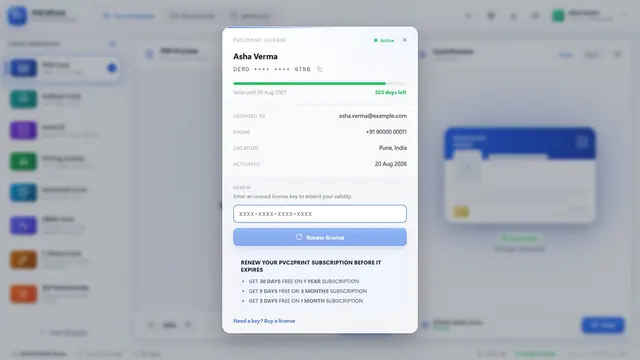
1:20 Licence activation How to activate your PVC2Print licence Enter your details and licence key on the activation screen, open the workspace, then see your licence details and renew.
In this video
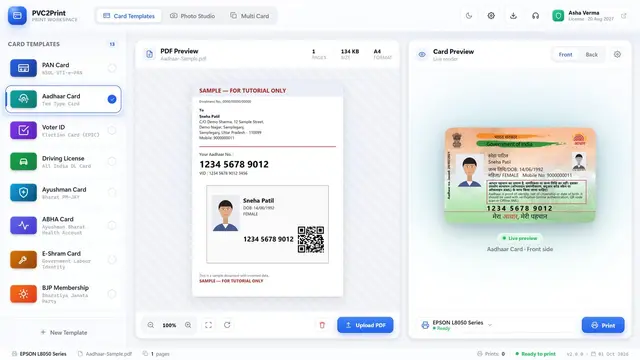
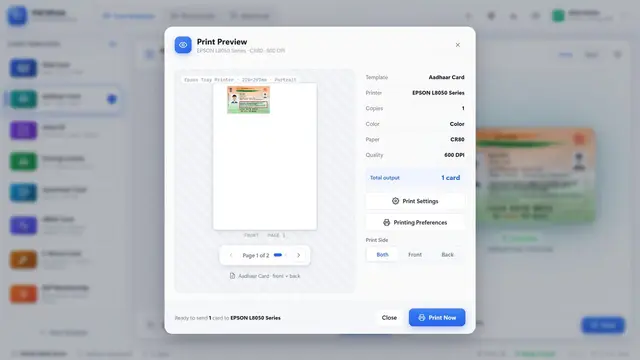
0:08 Activation screen0:19 Your details0:28 Licence key0:40 Workspace opens0:46 Licence details1:04 Renew2:07 PDF processing How to print an Aadhaar PVC card Choose the Aadhaar template, upload the PDF, check front and back, pick a printer and print on a PVC card.
In this video
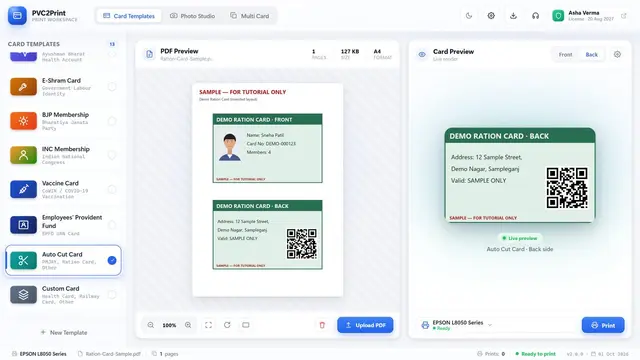
0:11 Choose the template0:22 Upload the PDF0:31 Card is filled0:43 Front and back0:55 Card settings1:16 Choose a printer1:25 Print Preview1:42 Print Now0:58 Auto Cut Auto Cut: cut any card from a PDF Pick Auto Cut Card, upload a PDF and let the app find, straighten and trim the front and back of your card.
In this video
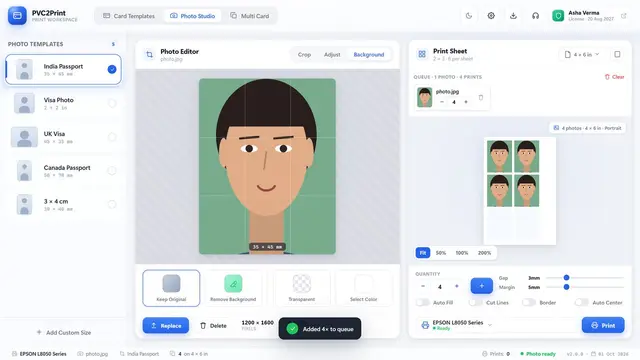
0:08 Auto Cut Card0:13 Upload the PDF0:23 Front is cut0:34 Back side0:47 Print1:38 Photo Studio Passport photos with Photo Studio Choose a passport size, upload a photo, change the background, add it to the queue and print a 4x6 sheet with cut lines.
In this video
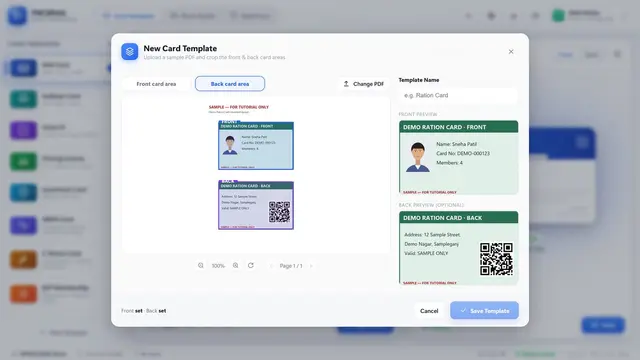
0:07 Open Photo Studio0:11 Choose the size0:27 Upload and auto face0:36 Background0:49 Add to queue0:56 Print sheet1:06 Cut lines1:18 Print1:03 Card templates Make your own card template Upload a sample PDF, drag the front and back areas, name the template and save it to reuse with any PDF of the same layout.
In this video
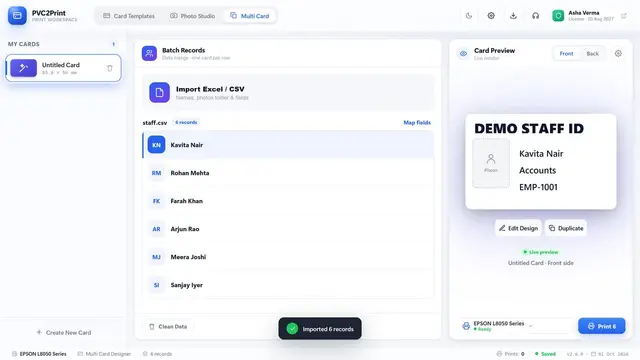
0:08 New Template0:12 Upload a sample PDF0:20 Front area0:26 Back area0:36 Name it0:43 Save Template1:31 Batch printing Print many cards from a CSV file Design a blank card with data fields, import a CSV file and print one card for every row.
In this video
0:10 Multi Card0:18 Create a card0:22 Design with data fields0:40 Save Card0:49 Import CSV1:00 One card per row1:09 Print the batch1:17 Front and back printing Print both sides of a card Use Print Side to print Both, Front or Back, try the 4x6 Dual Side profile, and print tray printers in two passes.
In this video
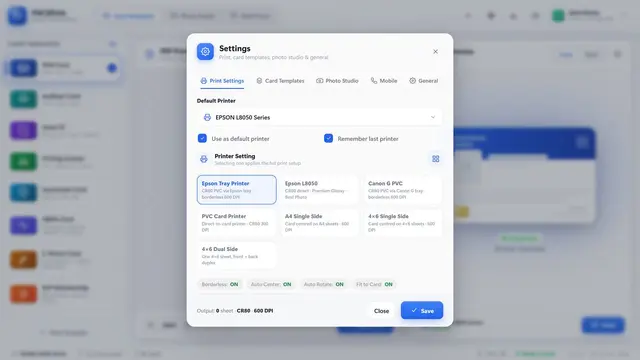
0:11 Print Side: Both0:22 Front only0:30 Back only0:38 4x6 Dual Side1:05 Tray printers1:06 Printer setup Set up your printer Open Print Settings, pick a printer profile, print a calibration sheet, then set colour, copies, paper, margins and quality.
In this video
0:07 Open Settings0:19 Printer profiles0:35 Calibration sheet0:46 Colour, copies, paper, quality0:56 Save
 1:20