
Activate PVC2Print licence Licence and activation
To activate your PVC2Print licence, enter the key in the app. Your licence key unlocks the app on your PC. Activation happens inside the app, not on this website.
After you buy
Your licence key is shown on the payment confirmation page, sent to the e-mail address you gave at checkout, and kept on My orders, where you sign in with the WhatsApp number you paid with.
Activate the app
- Install PVC2Print from the Download page and open it. It shows the activation screen until a licence is active.
- Fill in your full name, e-mail, phone number (choose the country code, then type the digits without it), city and country.
- Type the 16-character key from your purchase e-mail into the four boxes. The app checks the key as soon as it is complete.
- Press Activate. The workspace opens straight away; there is no restart.
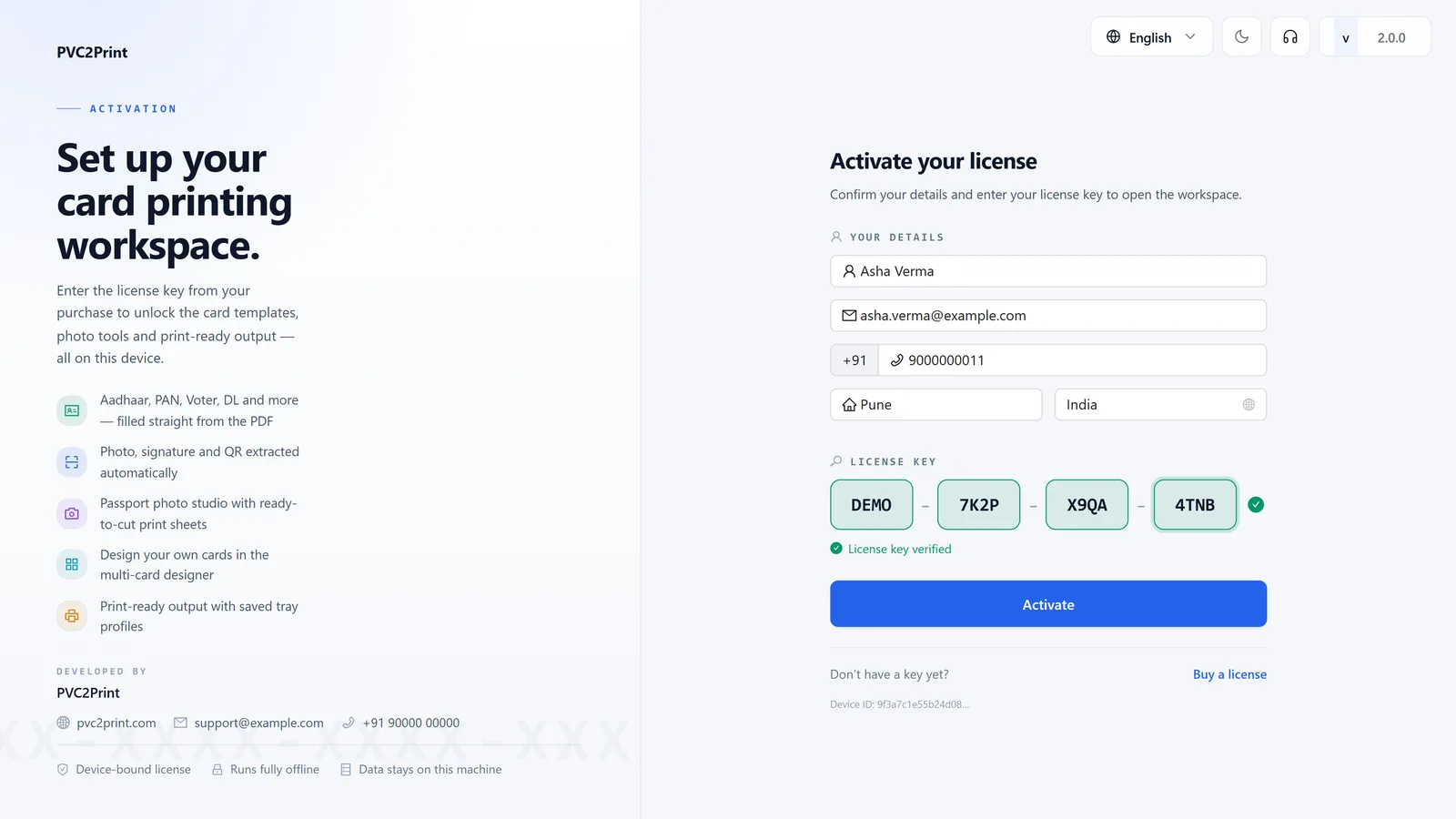
Activation needs an internet connection. The licence is tied to the PC you activate it on; the activation screen shows that PC's Device ID.
See or extend your licence
In the app, press your name at the top right to open the licence details. They show whether the licence is active, the date it is valid until and the days left, when the licence server provides them.
To extend it, open the licence details, enter a new, unused key under Renew and press Renew license.
Internet use
Reading PDFs and printing happen on your PC. The app needs the internet to activate, to renew, to re-check the licence from time to time, to send support requests and to download updates. A dropped connection does not sign you out.
Changing to a new PC
The app has no button to move a licence. Contact support with your order ID and the Device IDs of both PCs.
What the app's messages mean
| Message in the app | What it means | What to do |
|---|---|---|
| Enter a valid 19-character license key | The key is incomplete. | Type all 16 characters. The dashes are added for you. |
| Invalid license key, or another message from the licence server | The key was not accepted. | Check it against your purchase e-mail or My orders. If it still fails, contact support with your order ID. |
| Could not verify right now — you can still click Activate. | The app could not check the key in advance. | Check your internet connection and press Activate. |
| Activation failed. Please try again. | Activation did not finish. | Check the connection and try again. If it keeps failing, contact support with the Device ID shown on the screen. |
| This feature requires an active license. | The app is not activated, or the licence is no longer active. | Activate the app, or extend the licence with Renew. |
| Renewal key must be different from your current key | The key typed under Renew is the one already in use. | Enter a new key that has not been used. |
| Expired, in the licence details | The licence period has ended. | Buy a new key and enter it under Renew. |
Lost your key? Find it on My orders.